
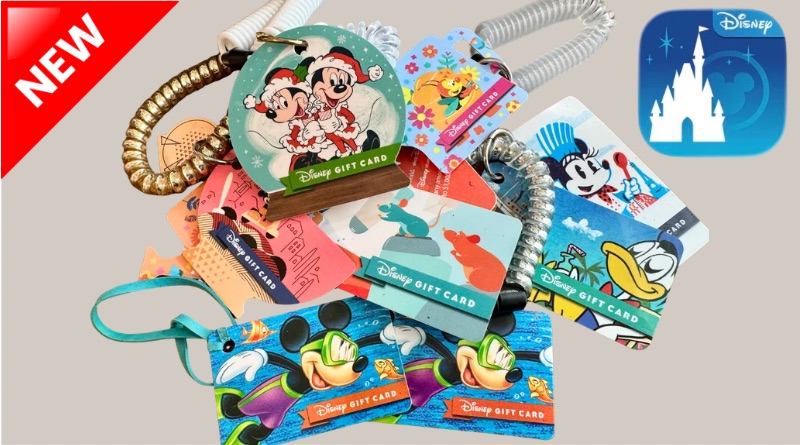
Disney Gift Cards Now Stored & Accessible in the My Disney Experience App!
Disney has simplified storing and using gift card balances. Finally! We added a few cards to the My Disney Experience (MDE) app, made a few purchases, and tested others.
In this post we will show you:
- How to add a gift card to your MDE profile
- How to use a saved gift card using Mobile Order
- How to use a saved gift card for in-store purchases using just MDE
- How to use a saved gift card when purchasing tickets on MDE
- How to check your gift card transaction history on MDE
- Misc: Card limits and restrictions
How to Add a Gift Card to MDE
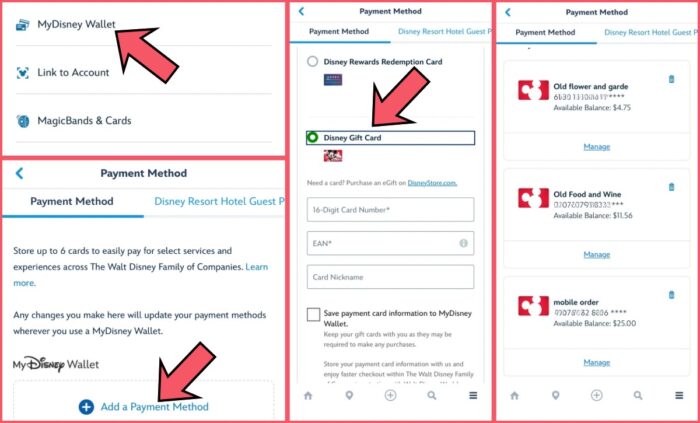
Once you’ve hunted down all of your old Disney gift cards, you’ll want to get signed into the My Disney Experience app. Once you’re in, select the hamburger icon on the bottom right of your screen. Following the arrows in the image above:
- Select MyDisney Wallet
- Select Add a Payment Method
- Select Disney Gift Card
- Enter the requested information~ see the image below for a visual
- Don’t forget to click the box next to “save payment card information to MyDisney Wallet” as shown in the middle image.
The section on the far right of the image above is what you’ll see when you’ve successfully added your gift cards.
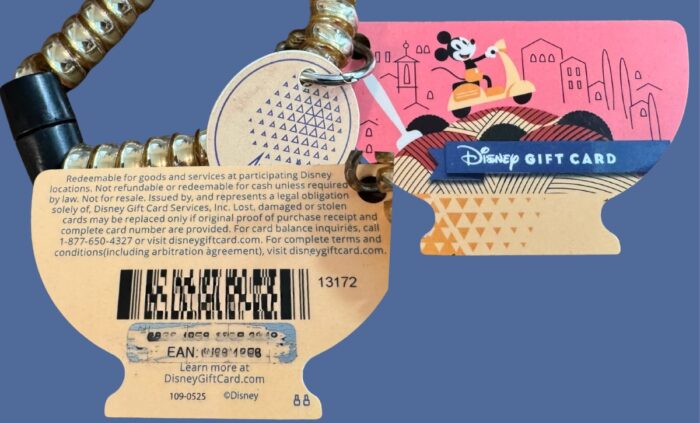
All Disney gift cards are 16 digits. Once you’ve entered that number in the prompt, you’ll need to enter the EAN number below the card number. On older Disney gift cards, around 2022 or earlier, the code will say “SEC” instead of EAN, but go on and enter it anyway. It’s still just the secondary identification number.
How to Use a Saved Gift Card on Mobile Order
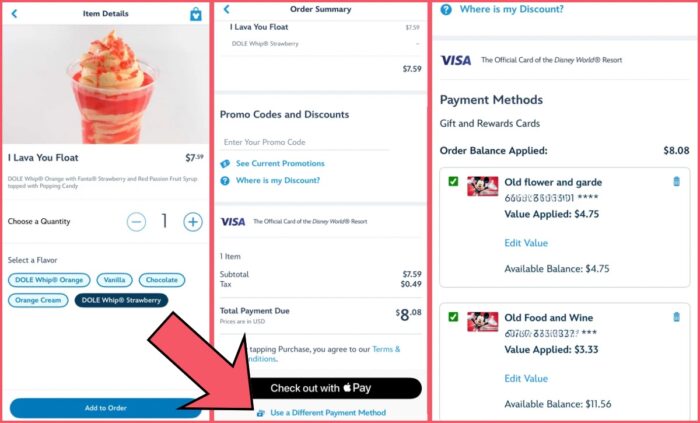
Go through the normal Mobile Order process on MDE. When you get to the Order Summary page, as shown in the center of the shot above, scroll down until you see “Use a Different Payment Method”~ select that prompt. A Disney Gift Card cannot be your default payment method, so this extra step is necessary.
Once you have selected Use a Different Payment Method, all of your gift cards with balances will populate. You can use more than one gift card to pay for your Mobile Order. For example, you can see that we did not have enough on our first gift card to cover the $8.08 total, so MDE automatically selected the next card with an available balance until you have covered the purchase. We needed to use two gift cards for our float.
How to Use a Saved Gift Card for an In-Store Purchase
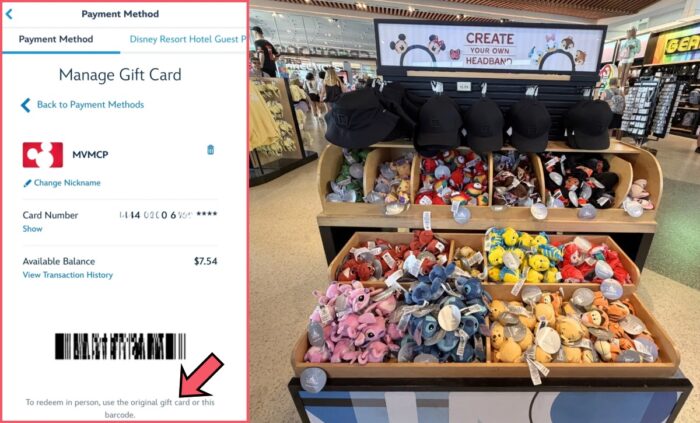
From the Payment Method screen in MDE, select “Manage” under the gift card you want to use for purchases in person. For example, if we wanted to buy the Tigger headband accessory inside Creations Shop today, we would pull up our gift card and scan the bar code associated with that card. This works exactly the same as using the physical card.
How to Use a Saved Gift Card to Purchase Tickets on MDE
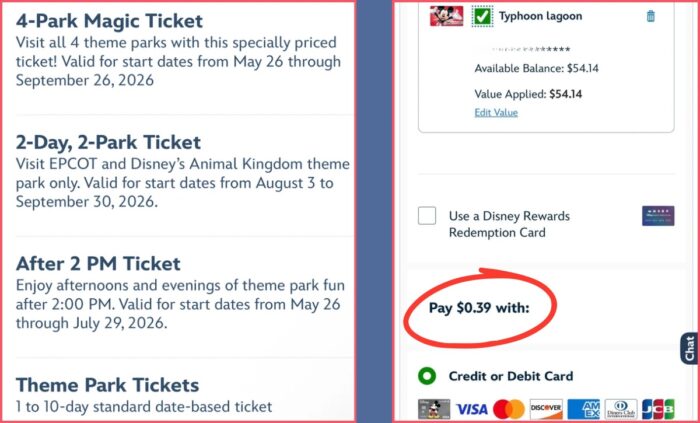
While you can use a saved gift card to purchase tickets on the My Disney Experience app, the process is unlike paying for Mobile Order in that you can only use one gift card. You can see in the image above that we used a gift card for most of our ticket purchase but had a remaining balance of 39 cents. We were not given the option to use another gift card for the remaining balance, only a credit or debit card. So, if you’re thinking of buying tickets this way, make sure you load enough on your gift card to cover the entire purchase.
How to Check Your Gift Card Transaction History
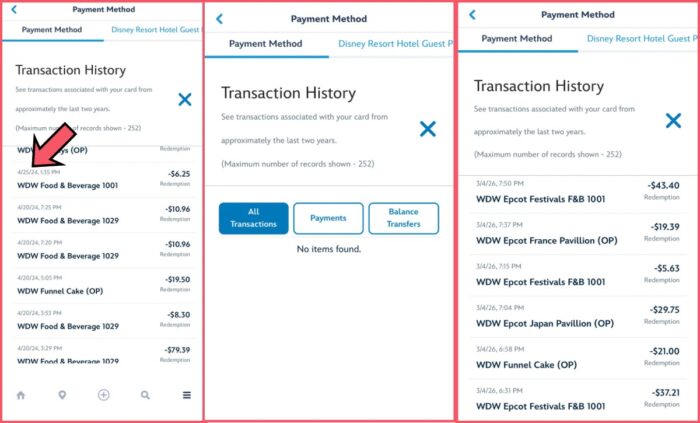
You can see exactly how many funnel cakes you’ve purchased over the years using your gift cards by checking the Transaction History under each card. This feature is also available under Payment Method, and then “Manage” under the card in question. Select “View Transaction History” under the card number.
There is a message that says you’ll be able to see transaction history on your gift card from “approximately the last two years” but the proof of our funnel cake research from April 2024 is still there, more than 2 years later.
The center image shows the messages you’ll get when your gift card is really old! This card was from 2022 and while we were still able to load the remaining balance, no transaction history remains.
Everything Else
- Gift cards cannot be used to purchase any Lightning Lane product.
- You can have 6 saved Disney Gift Cards saved to your MyDisney Wallet at one time. Once you have used the balance, you can reload the card or delete it to make room for another card. This does not mean you can only have 6 cards in total. You can still have multiple debit and credit cards saved, plus 6 gift cards.
- We aren’t sure if saved gift cards can be used for Merchandise Mobile Checkout, but we’ll test it out.
The Disney Gift Card Website
As long as you’re using one sign-on for My Disney Experience, any gift cards that you have previously registered on Disney’s gift card website should now show on your My Disney Experience app under Account, MyDisney Wallet, Payment Method, Disney Gift Cards.
Our team is super excited about this change! What are your thoughts?
You May Also Like...
-
Disney recently made storing and using gift cards easier in the My Disney Experience (MDE) app. We tested the process today…
-
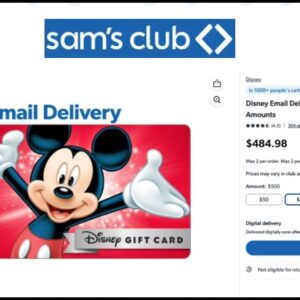
Sam's Club Members can save on Disney Gift Cards right now. A quick sign in to the Sam's Club website and…

Can you use these gift cards to pay a hotel balance?
Do you mean that stored gift cards can’t be used to purchase LLs? Because I have used a gift card, cut and paste from my Notes app, every time I’ve bought LLs for years now.
Looks like you still need to switch over to the disneygiftcard.com website in order to transfer/combine balances between cards. Odd that you can’t do that in the MDE interface, but this is still a huge improvement!
It’s about time! Never understood why this didn’t exist before.
Right?!? Such a great improvement. Thanks for reading! -Chrissy