
New! Step-by-Step Room Request Instructions
The TouringPlans Room Finder helps you find desirable rooms at Walt Disney World. Below is a step-by-step tutorial for selecting a room and then sending a room request to Disney. This includes requests for direct booking with Disney, using a Travel Agent to book, and DVC requests.
Unfortunately, Disney stopped accepting room requests from us in April 2026, but we’ve adapted our processes to give you exactly what you need to request a selected room on your own.
The following shows an example of how to create a trip on your TouringPlans Dashboard, select a room using the Room Finder, and access an email template to send your room request.
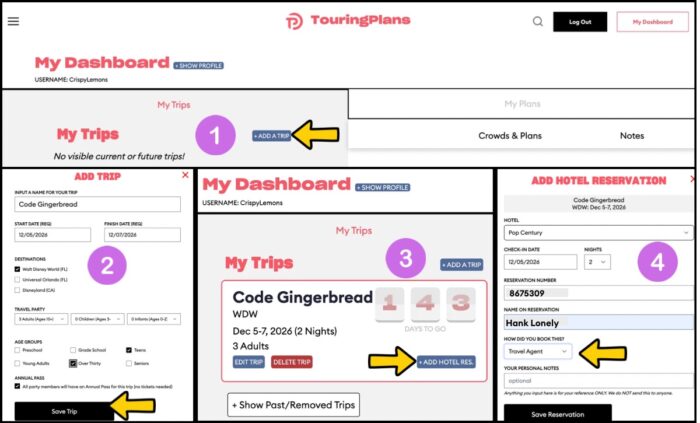
Step 1
Create a Trip on Your TouringPlans Dashboard
- Go to My Dashboard
- My Trips
- Add a Trip
- My Trips
Step 2
Add Your Trip
- Enter your trip information
- Save Trip
Step 3
Add Hotel Reservation
- Click on the blue “+Add Hotel Res” button
Step 4
Enter Booking Method
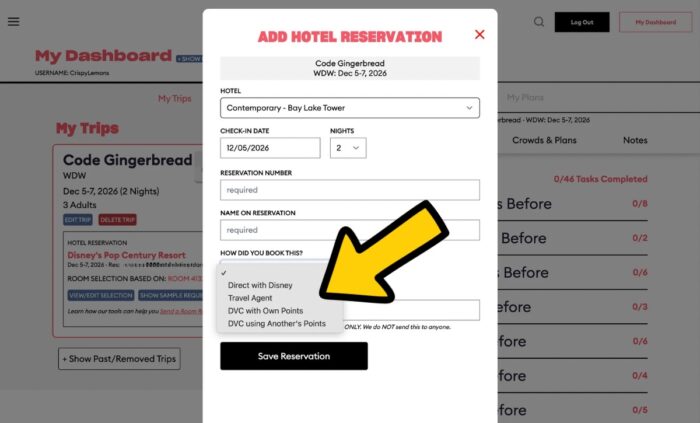
- We have customized our Room Request emails depending on your booking methods. If you have used a Travel Agent to book, select that from the dropdown as shown above.
- If you booked directly with Disney on your own, select that method under How Did You Book This Trip?
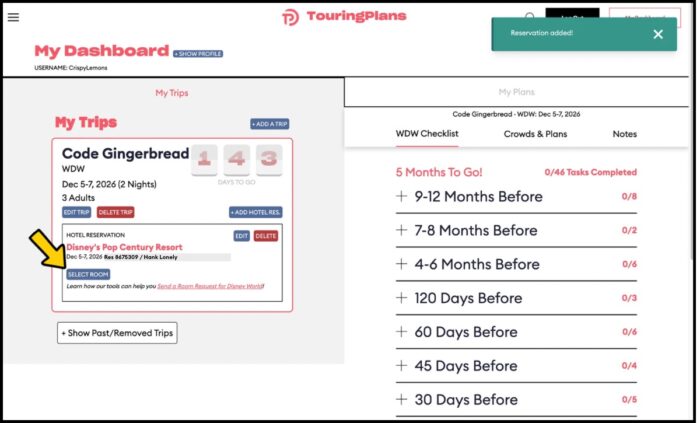
Step 5
Select your room by clicking “Select Room” and then using the TouringPlans Room Finder.
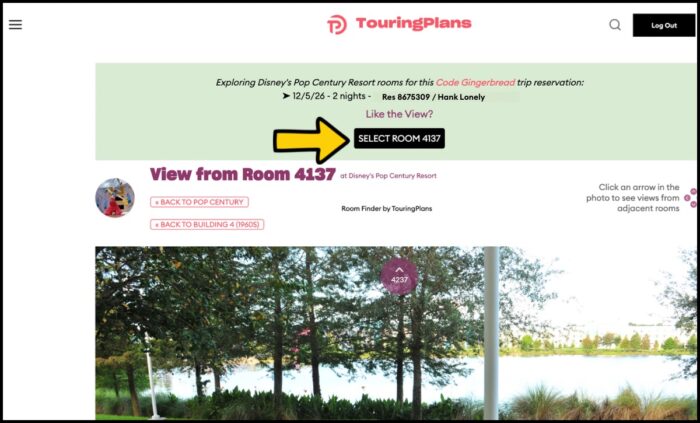
Step 6
- Click the “Select Room xxxx” button (as shown below) when you’ve settled on where you prefer to stay.
Step 7
Show Sample Request
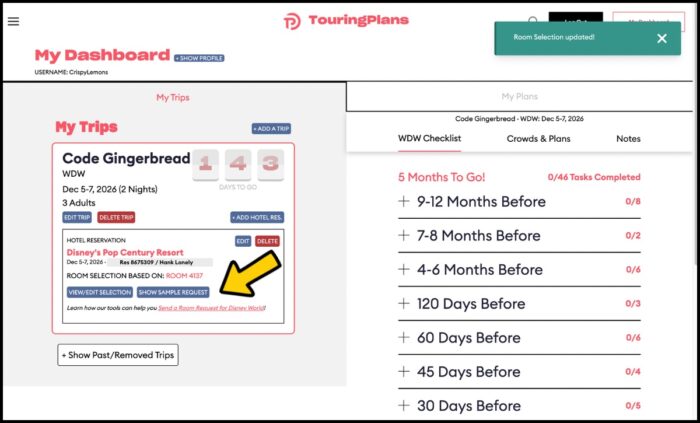
- After selecting your room, you will receive a “Room Selection updated!” message like the one in the upper right corner of the image below.
- Click “Show Sample Request” under the My Trips section of your dashboard ~ as shown with the yellow arrow.
Step 8
Review Sample Email
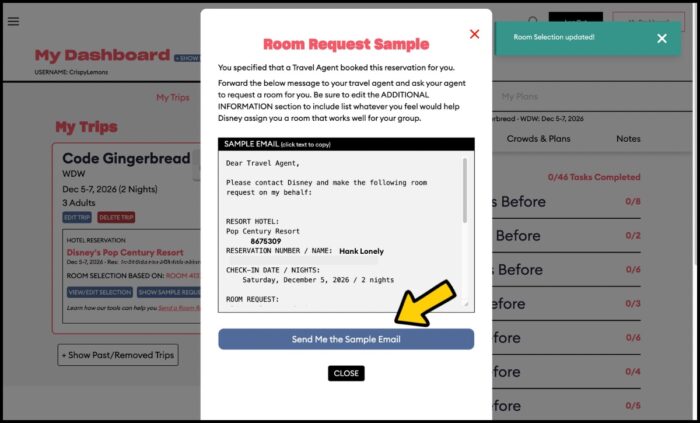
- Review the sample email that populates based on the information you have entered.
- Click “Send Me the Sample Email”
Step 9
Review and Send Your Email
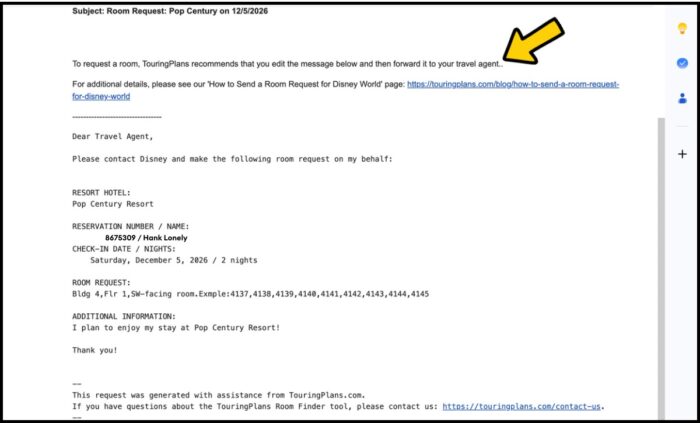
Check your email and review the template we sent you based on your selected room! We mention at the top of the email that you should edit the text before sending it on to your Travel Agent. That’s just because you’re hopefully on a first name basis with the person plotting your trip and would have a better greeting than “Dear Travel Agent”.
After you’ve edited the greeting, forward your email!
In the past, we’ve sent requests about 30 days in advance, and that’s what we suggest now. However, that is not a “magic” number, and we have no reason to think that a request made 30 days prior to check-in has a better chance of being honored than one made 17 days or 5 days prior to check-in. It never hurts to make a request, so you may as well give it a shot! Just remember that there is no guarantee that Disney will honor or acknowledge your request. Consider it some extra magic if you get a room like what you requested, and enjoy your time in Disney World no matter what!
Booking Directly Disney, Using DVC Points, Renting DVC Points
Did you book directly with Disney? No problem. Use Disney World’s web-based Chat feature or its Contact Us page to send your request.
DVC Room Requests
Using your DVC Points: DVC Members using their own points (so not renting from another DVC Member) will need to need to log into DisneyVacationClub.com and use the chat or “email us” link to send your room requests. You will not be able to simply forward our email to DVC Member Services.
Using Rented or Borrowed DVC Points:
Did you rent DVC points through a 3rd party like David’s Vacation Club Rentals?
- Select “DVC Using Another’s Points” when asked how you booked your trip.
- Select “Show Sample Request” under your trips.
- Click on “Send Me The Sample Email”
- Check your email and alter any necessary details for your trip.
- Forward the email to the rental company or 3rd party and ask them to send the request for you.
- The same process applies if you are renting or being gifted the DVC points from the DVC Member. The Member will need to make the room request for you using the DVC site as explained above.
Please let us know if you try the new Room Request!
You May Also Like...
-
Disney World is home to more than 30,000 hotel rooms spread across more than 30 hotels with various themes and styles…
-

A great hotel room can really make your vacation sweeter. Even within the same resort and room type, some Disney World…
What is the email address to send this request if I booked directly on the Disney Website?
Just found out about this today as my stay is October 2nd.
Very very disappointing.
To clarify: Am I the one to actually send the room request email to Disney? TP just emails me a draft of what I should say, and TP does not email my request to Disney?
That is correct: whomever booked the stay should make the room request. (In the past, we had a way to send room requests on behalf of our customers, but Disney unfortunately shut that down in April 2026.)
If you booked your stay directly with Disney, there is a way to send Disney World a message at https://disneyworld.disney.go.com/help/email/, or you can use the Chat function on Disney World’s website.
If you used a travel agent or rented DVC points, contact whomever booked the stay for you. If you booked using your own DVC points, contact DVC Member Services.
Thanks! This was a bit confusing to several of us.
When should we send the room request? Is there a preferred window, such as no more than 30 days before and at least 3 days before?
I added some text that makes it clearer that you (the person staying in the room) need to send the request. I apologize for the confusion–we’re getting used to the new processes, too.
The text above now suggests sending your request about 30 days in advance. Of course, if you want to send a request and can’t do so until closer to check-in, go ahead and try it later. It never hurts to ask, and whether magic is sprinkled on your assigned room may have nothing to do with when you send a request.
Awesome, will be trying this out on our upcoming trip!
Thank you TouringPlans!